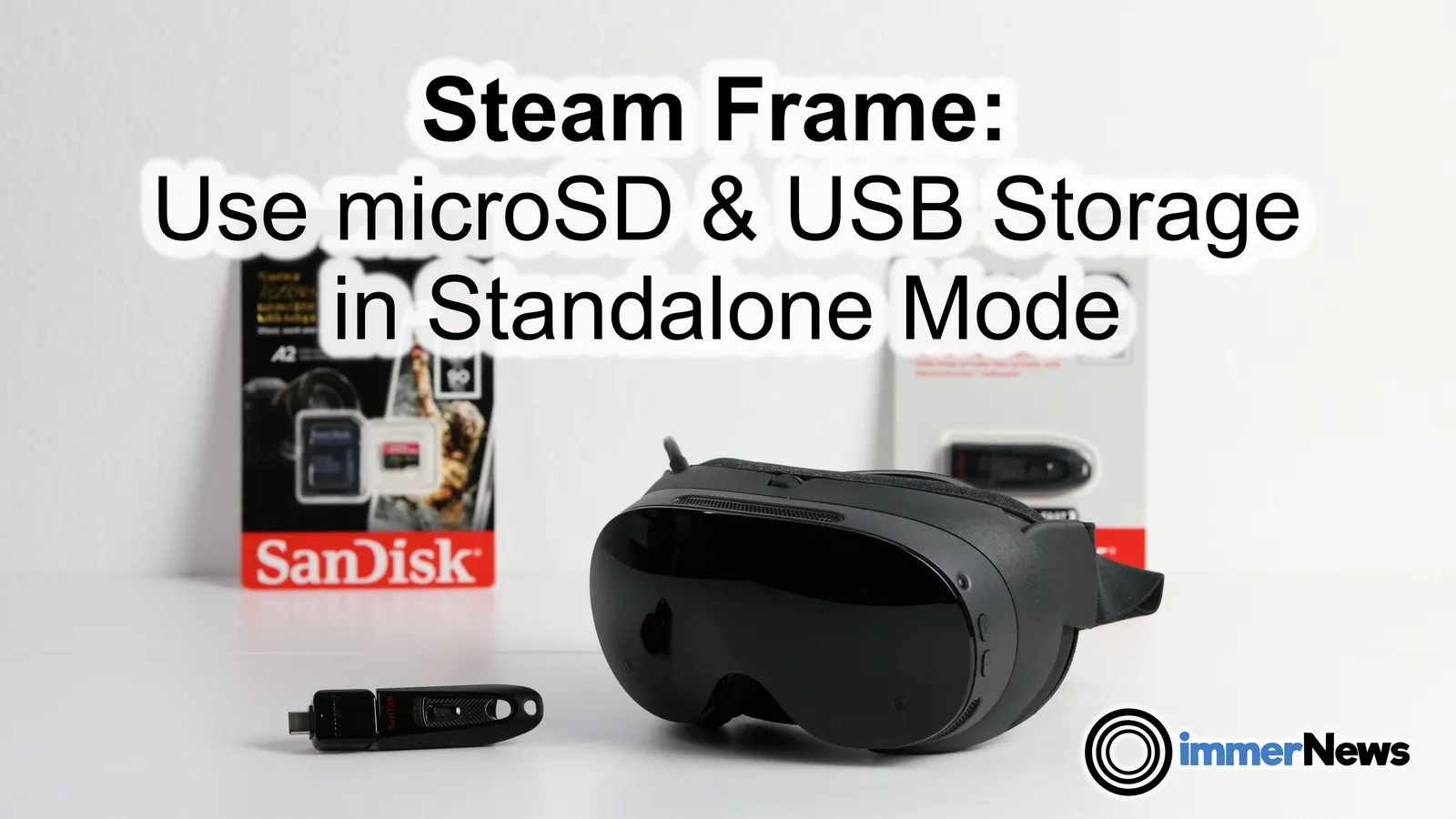

The storage space on the Steam Frame headset is limited. With microSD cards and USB sticks, there is a good way of circumventing this issue. As we found out, these can be made accessible to Android apps running standalone on Steam Frame through Lepton. This guide shows the manual setup, using our VR media player app immerGallery as an example. With different parameters, our method should also work for other Steam Frame Android apps that can browse shared storage.
The files on the external storage stay on the original drive. Each Android app on Steam Frame has its own Lepton container, so it is required to keep the target app running while setting up access to external storage.
Preparations
We tested this approach both on SteamOS 0.4.5 (build 20261007.6125817) and SteamOS 0.5.6, build 20261022.6153909. We tested an exFAT microSD card and a FAT32 USB stick. FAT32 limits individual files to about 4 GB, so exFAT is more suitable for larger videos.
To get started, do the following:
Enable Developer Mode under Steam Settings > System, launch immerGallery and connect a USB data cable between your headset and your computer. Insert the microSD card.
Download and extract Google’s Android SDK Platform Tools for Windows, macOS or Linux. They include ADB, the Android Debug Bridge. Downloading Android Studio is not required. As a smaller alternative on Windows, you could also use Minimal ADB.
Download our helper script, extract it and place map_lepton_storage.py in the folder with ADB. On Windows, open that folder in Explorer, type cmd in the address bar and press Enter.
The examples use Windows Command Prompt. On macOS/Linux use ./adb; in PowerShell use .\adb.exe, unless ADB is already added to your PATH environment variable.
After running adb devices -l, check that frame appears with status device, then copy the helper with the push command.
adb devices -l
adb -d push map_lepton_storage.py /home/steamos/Documents/map_lepton_storage.py
The commands below use read-only access. The small notes below the commands show how to allow writing instead. The Linux mount and helper must use the same matching modes. With read/write access, cutting and pasting, creating new folders or deleting files changes the actual drive.
1. Access the microSD card
Run the following from your terminal on your computer, with USB connected. Identify the card and its partition:
adb -d shell lsblk -p -o NAME,SIZE,FSTYPE,MOUNTPOINTS /dev/mmcblk0The following commands assume /dev/mmcblk0p1. Confirm this by size and the shown filesystem. Also, check whether it is already mounted:
adb -d shell findmnt -rn -S /dev/mmcblk0p1 -o TARGET,OPTIONSIf a mount is listed in your chosen mode (ro or rw), skip the mount command. If there is no output, it is unmounted. To change an existing mount’s mode, see “Changing access or removing a drive” below.
Mount:
adb -d shell udisksctl mount --block-device /dev/mmcblk0p1 --options ro --no-user-interactionReplace ro with rw for read/write access.
After mounting, run the findmnt command above again. Replace CARD_PATH below with its first column, usually /run/media/steamos/CARD_ID. Keep the quotes.
Share with the app:
adb -d shell "python3 /home/steamos/Documents/map_lepton_storage.py --container lepton-steamlaunch-3073280 --source 'CARD_PATH' --name microSD"For an rw mount, add --read-write before the final double quote. This is also required if Linux had already mounted the card read/write.
In immerGallery, stop playback, press the refresh icon in the top menu bar, then open the microSD folder at the top level:

2. Access a USB stick
If you only want to access a USB stick, complete the preparation above and skip the parts about the microSD card. The headset and computer must be reachable within the same network. Keep the USB cable connected until SSH over Wi-Fi works.
SSH requires the Linux steamos password, separate from your Steam account password. If you have not set it yet, create it with Set User Password under Steam Settings > Developer. If Windows does not recognise ssh, install the OpenSSH Client in Windows Settings > Optional features.
You can find the headset’s IPv4 address by opening the connected Wi-Fi network in Quick Settings or under Steam Settings > Internet. Alternatively, while USB is still connected, use this command:
adb -d shell ip -4 addr show wlan0Use the address after inet, without the slash and the number after it (such as /24), for HEADSET_IP:
ssh steamos@HEADSET_IPConfirm the first-connection host prompt for your headset and enter the Linux password. Once connected, unplug the USB cable and insert the USB stick. A directly connected stick or simple adapter uses the charging port, so you cannot charge the headset at the same time in this setup.
Run the following commands inside SSH. They run on SteamOS, so compared to above, there is no ADB prefix required:
lsblk -p -o NAME,SIZE,TRAN,FSTYPE,MOUNTPOINTSFind the disk marked usb and then its partition underneath. Replace USB_PARTITION with your full partition path (e.g. /dev/sdf1):
findmnt -rn -S USB_PARTITION -o TARGET,OPTIONSReuse an existing mount in the desired mode. If no mount is listed, mount it:
udisksctl mount --block-device USB_PARTITION --options ro --no-user-interactionReplace ro with rw for read/write access.
Run findmnt again after mounting. Replace USB_PATH below with its first column, the full /run/media/steamos/... folder:
python3 /home/steamos/Documents/map_lepton_storage.py --container lepton-steamlaunch-3073280 --source 'USB_PATH' --name USBStickFor an rw mount, append --read-write to this command.
Stop playback in immerGallery, press the top-menu refresh icon, then open USBStick.
Use another Android app
Launch the other app and replace lepton-steamlaunch-3073280 in the helper command with the new container name. With the USB cable connected, list the containers using:
adb -d shell podman ps --format "{{.Names}}"The --container argument is the app-specific change; --source still identifies your mounted drive. The folders appear under /sdcard/microSD or /sdcard/USBStick. The app needs suitable shared-storage permissions and a way to browse those folders.
Changing access or removing a drive
Close files using the drive. If it is shared with an app, repeat its helper command, but now with the parameter --undo, keeping --read-write if that is what you originally used. Then unmount the Linux source with udisksctl unmount --block-device PARTITION, replacing PARTITION with its full device path like before. Prefix this with adb -d shell when using the computer’s USB connection.
To change modes, mount and share again with matching options. It is recommended to unmount the drive before unplugging it.
After a restart
After a headset reboot or Lepton container restart, launch the app and repeat the mount checks and the helper command. You do not need to copy the helper again as it stays on the headset.
Our YouTube video also covers playback tests, measured storage speeds and how the data transfer results compare with Blu-ray bitrates. For future SteamOS / Lepton updates, it would be great if there were per-app settings for automatic microSD and USB access, with a choice of read-only or full read/write access.
Links
- Steam Frame microSD / USB helper script download
- Google Android SDK Platform Tools: ADB for Windows, macOS and Linux
- Minimal ADB / MiniADB for Windows (alternative, untested here)
- immerGallery on Steam
- Steam Frame versus Quest 3: our media tests
- UHD Blu-ray bitrate examples used in the video: The Prestige and Interstellar (Archimago)