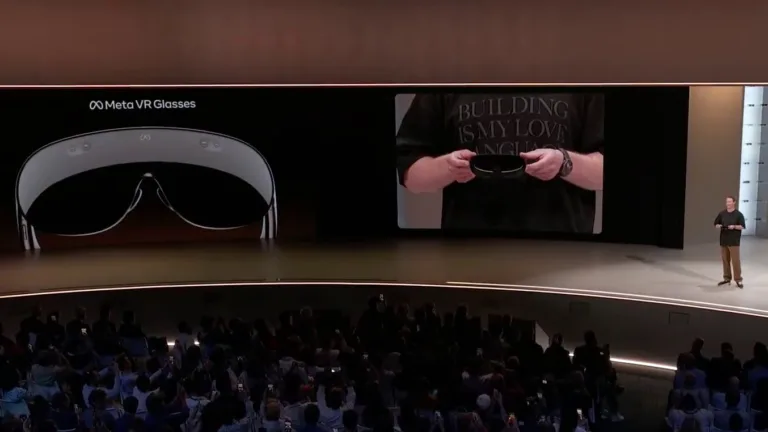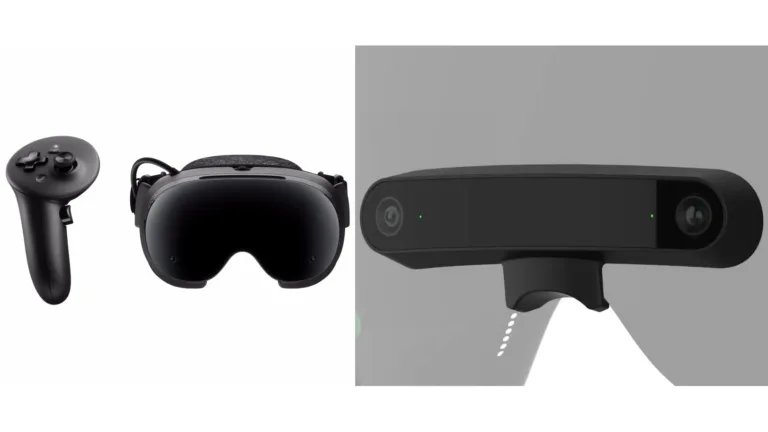
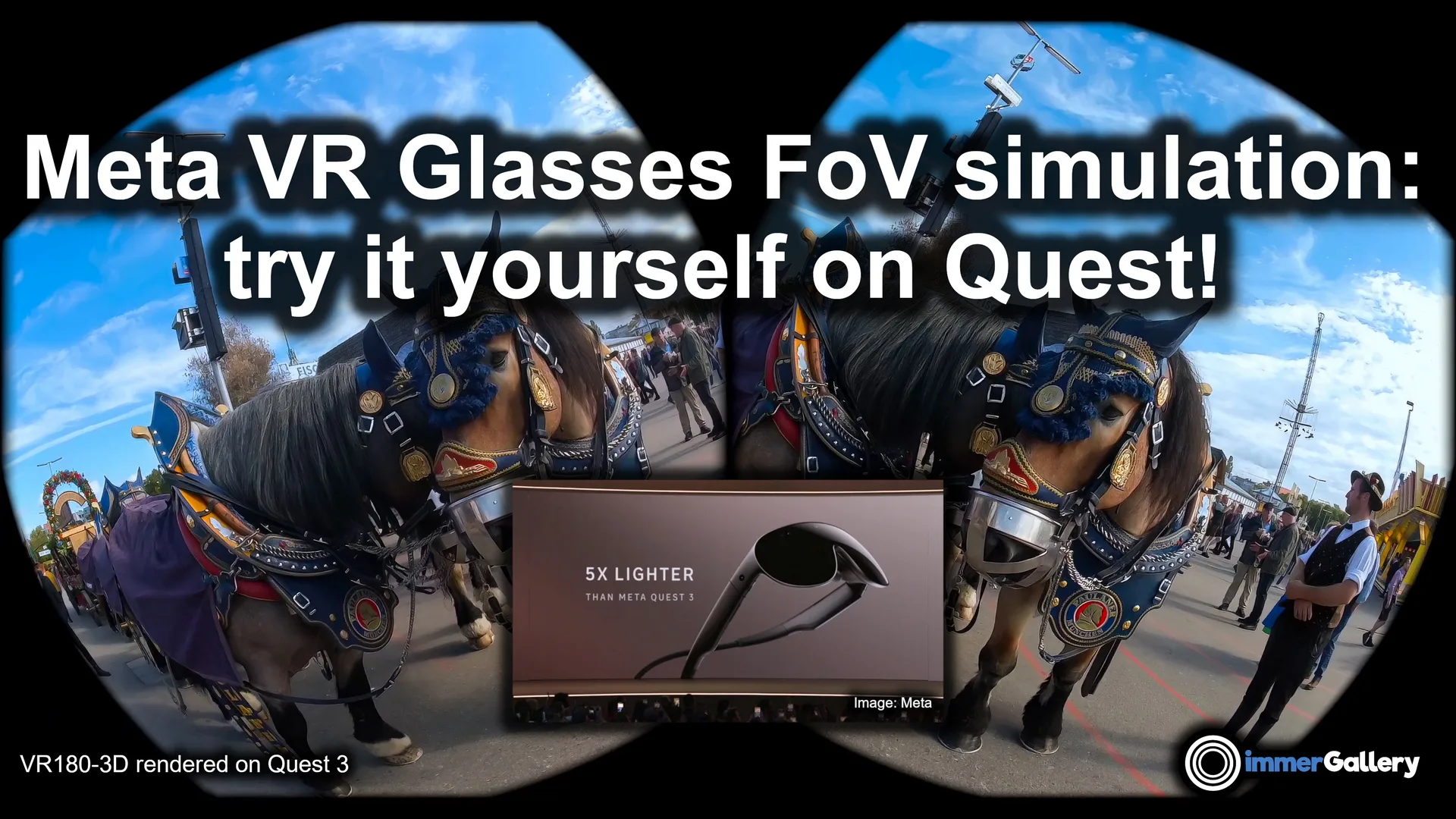

We added a simulation of the Meta VR Glasses field of view (FoV) to the Quest versions of our VR media player immerGallery and the free immerGallery Demo. A new setting lets you switch between the normal view and the narrower simulated view.
In our previous article, “Meta VR Glasses: better for 3D movies, but less immersive for VR180?”, I discussed my expectations for watching immersive media on a device with a smaller field of view: The Meta VR Glasses have 70° H × 66° V, while the field of view on Quest 3 is 110° H × 96° V. Exact numbers can vary in practice, e.g., depending on the fit.
Disclosure: immerGallery is developed by the same immerVR team behind immerNews.
What the FoV simulation shows
In Meta XR Core SDK 207.0, Meta introduced a field-of-view simulation for Meta VR Glasses, using a default mask of 70° horizontally and 66° vertically. This allows us to experience how a smaller visible area affects different types of content.
Of course, the simulation only changes the visible area, but cannot show how the micro-OLED displays, higher angular resolution, optics, and other features of the headset affect the experience.
How movies, photos and VR180 feel with the narrower view
My impressions remain reasonably close to what I expected in the previous article. However, trying the simulation myself made some differences more noticeable.
- Regular 2D or 3D movies such as cinema 3D movies: These still worked well for me. At the virtual screen sizes I tested, the field of view was enough to show the movie with some space remaining at the sides. However, I noticed that even small head rotations could make part of the movie screen leave the visible area. With Quest 3’s normal field of view, the screen could move farther to the side while still remaining fully visible in my peripheral vision.
- 3D photos: My impression was similar to the one I had with movies. For stereo photos from the XREAL Beam Pro, I usually prefer an 80° curved virtual cinema screen. With the simulation enabled, parts of the sides fell outside the visible area when looking straight ahead. Nevertheless, viewing these photos was still enjoyable.
- Wide-angle panoramas: These felt less immersive and less impressive. One of the things I enjoy about viewing panoramas in VR is the feeling that the image wraps around me. With the smaller simulated field of view, that feeling was missing.
- Spherical media (VR180, 360°): For me, the simulation did not create the feeling of presence where I feel like being inside the scene. It felt more like looking around a scene through a rectangular window with rounded corners. I could still explore it by turning my head, but the feeling of being transported into that scene was missing. Nevertheless, in VR180-3D the perceived stereoscopic depth still worked very well.
Watch the comparison and try it yourself
The video below shows the difference using a VR180-3D image on Quest 3, followed by a wide-angle panorama comparison. It shows the rendered left- and right-eye views. The rotation in the rendered views reflects the orientation of Quest 3’s displays. The images are displayed with barrel distortion to compensate for the pincushion distortion caused by the headset’s lenses. If you are interested in that topic, you can read more about it in my co-authored paper “Improved Pre-Warping for Wide Angle, Head Mounted Displays” from ACM VRST 2013.
When I enable the FoV simulation, the areas excluded from the narrower view are highlighted in green. This makes it easier to see how much of the surrounding image falls outside the simulated field of view.
Quest 3 stereo render capture with the Meta VR Glasses FoV simulation disabled and enabled. Green highlights the masked areas. Video: immerVR.
The video gives a first impression, but watching it on a regular screen cannot convey how the narrower view feels inside a headset. To judge its effect on your own sense of immersion and presence, I recommend trying the simulation yourself.
Install or update immerGallery to at least version 1.4.5b or get the free immerGallery Demo on your Quest. Open some content, for example one of the included images in the Sample Gallery, then go to Settings → Advanced and enable “Simulate Meta VR Glasses FOV”. You can also test it with your own videos. The free Demo allows up to five minutes of video playback each time you start the app.
Still promising for movies and regular 3D photos
Overall, my opinion remains close to the expectations in our first article. With micro-OLED displays, higher angular display resolution and a lighter design, Meta VR Glasses could still be a very interesting device for watching regular 2D and 3D movies and photos.
For spherical VR180 and 360° content, however, the simulated field of view fell short of the immersive feeling I enjoy. The content was still viewable with a great 3D effect, but some of the magic of feeling like being inside the scene was missing for me. Other viewers may feel differently, which is why having an easy way to try the simulation yourself is useful. Let us know in the comments how you perceive it!
Links
- immerGallery: https://www.meta.com/experiences/quest/4677037565709635
- immerGallery Demo: https://www.meta.com/experiences/quest/4598517593539197
- Previous article: Meta VR Glasses: better for 3D movies, but less immersive for VR180?
- Meta XR Core SDK 207.0